
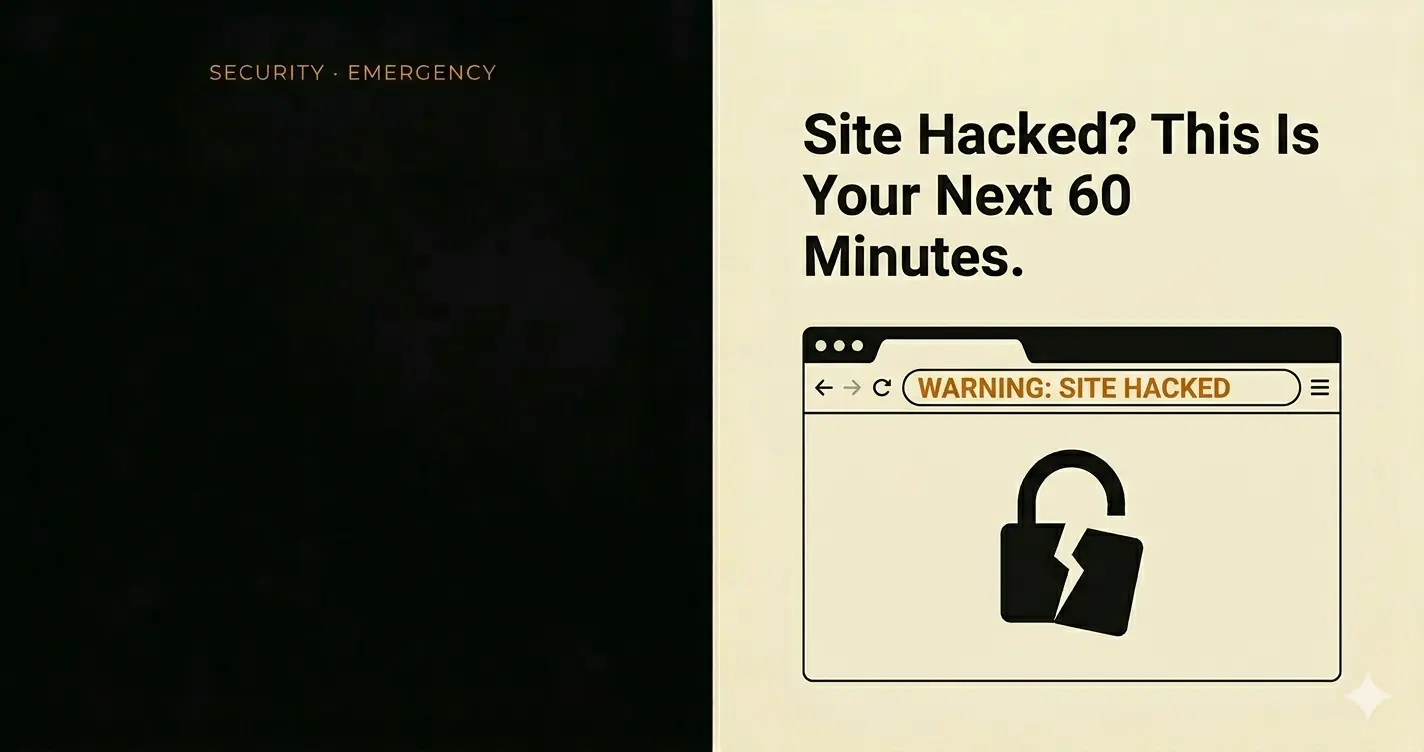
You have found out your WordPress site has been hacked. It might be a Google warning, a host suspension, a message from a visitor, or something you noticed yourself.
The sequence of what you do next matters. Most cleanups fail to prevent re-infection because they address the malware without addressing the entry point. Here is the correct order.
Step 1: Take the Site Offline Immediately
While the site is live and infected, it is potentially serving malware to every visitor, damaging their trust in your business, and contributing to further spread. Put it in maintenance mode or ask your host to take it offline.
This is not an overreaction. It is the responsible first step. An infected site that stays live causes more damage than a temporary downtime message.
Step 2: Change Every Password — Right Now
Change all WordPress admin passwords. Change your hosting control panel password. Change your database password. Change your FTP password. Change the email account linked to WordPress.
Do this before anything else. If the attacker has credentials, cleaning the malware without changing passwords means they can re-enter the moment the site is back online.
Step 3: Find the Entry Point Before You Clean Anything
This is the step most cleanups skip — and the reason most hacked sites get hacked again within weeks. Cleaning malware without removing the entry point is the same as mopping a floor while the tap is still running.
Ask your host for server access logs. Look for the first signs of unusual activity — unexpected file modifications, requests to wp-admin from unfamiliar IPs, newly created admin accounts. This tells you how the attacker got in.
Common entry points: a nulled plugin or theme, an outdated plugin with a known vulnerability, a compromised admin account, a weak FTP password.
Step 4: Remove the Entry Point
Once you know how they got in, remove it before touching the malware. If it was a nulled plugin — delete it entirely, not just deactivate. If it was an outdated plugin — update or replace it. If it was a compromised admin account — delete it.
Skipping this step and going straight to cleaning means the next attack is already queued.
Step 5: Scan and Clean the Infection
Install Wordfence or a similar security scanner and run a full scan. Review every flagged file carefully — some legitimate WordPress files get flagged. Delete or restore files that are confirmed as infected.
If you have a clean backup from before the infection, restoring from backup is often faster and more thorough than manual cleaning. This is why backups are not optional.
Step 6: Update Everything
Update WordPress core, every theme, and every plugin to their latest versions. Delete anything that is not actively being used — deactivated plugins still present attack surface if they are sitting in the plugins folder.
Step 7: Notify Your Host
Tell your hosting provider what happened and what you found. Good hosts will scan for residual malware at the server level and can flag if other sites on shared hosting were affected. Some hosts also have cleanup services — worth asking about.
Step 8: Make Three Changes that Prevent the Next Attack
Once the site is clean, make these changes permanent:
- Remove any nulled or unofficial themes and plugins. Replace with licensed versions from official sources. This is the most common cause of repeat infections.
- Enable two-factor authentication on all admin accounts. A stolen password becomes useless without the second factor.
- Set up automated daily backups stored off-server. The next time something goes wrong — and there will be a next time — you need something to restore from.
Getting hacked is disruptive. Getting hacked repeatedly because the root cause was never addressed is worse — and entirely avoidable. The entry point is always the priority. Find it first.
Is your website making the same mistakes?
We manually assess every layer — backend to frontend — and show you exactly what is holding your site back. No tools, no guesswork. It is free.
Get Your Free Assessment →